Watch on TV
Watch your phone’s videos on the big screen
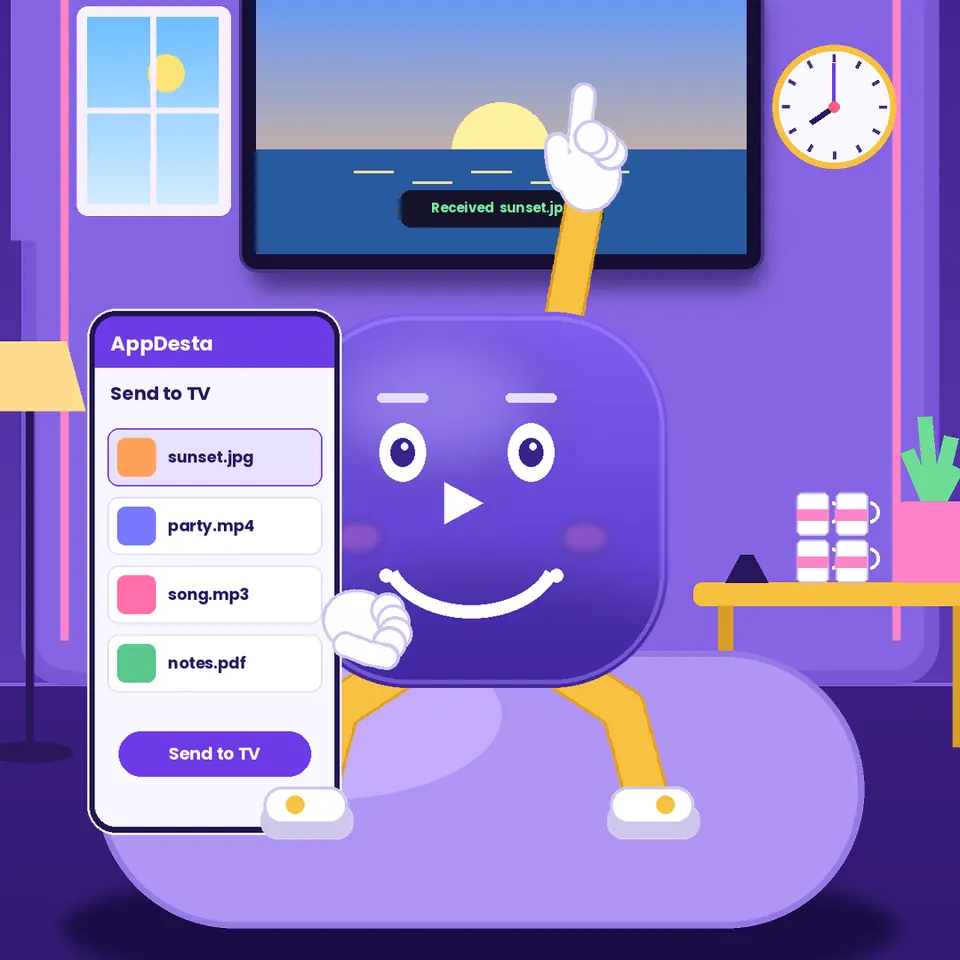
Pick a video on your phone and add it to the TV. It plays on your Android TV straight from your phone, over your Wi-Fi or your phone’s hotspot. Nothing is copied to the TV, and you don’t need internet.
How it works
 1
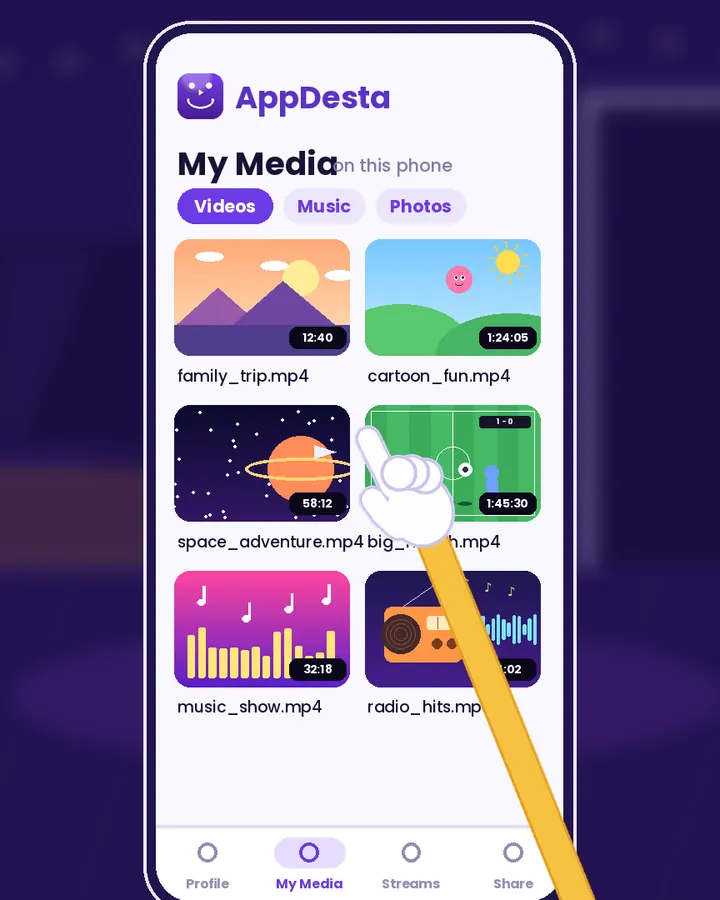
Pick a video
Open My Media on your phone and choose a video.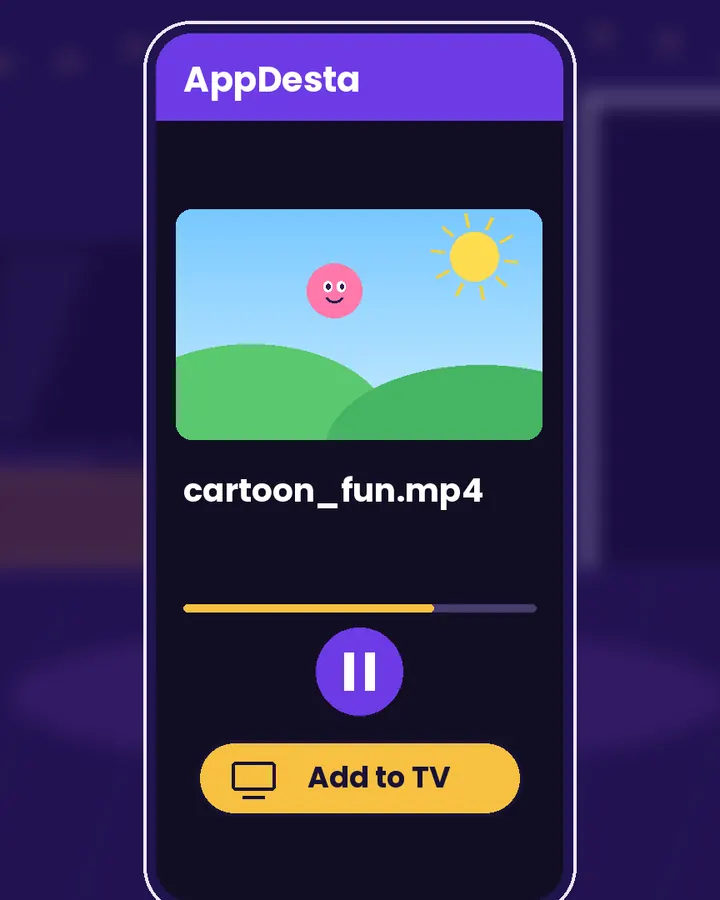 2
Tap Add to TV
In the player, tap Add to TV. You can also swipe right on any video in your feed.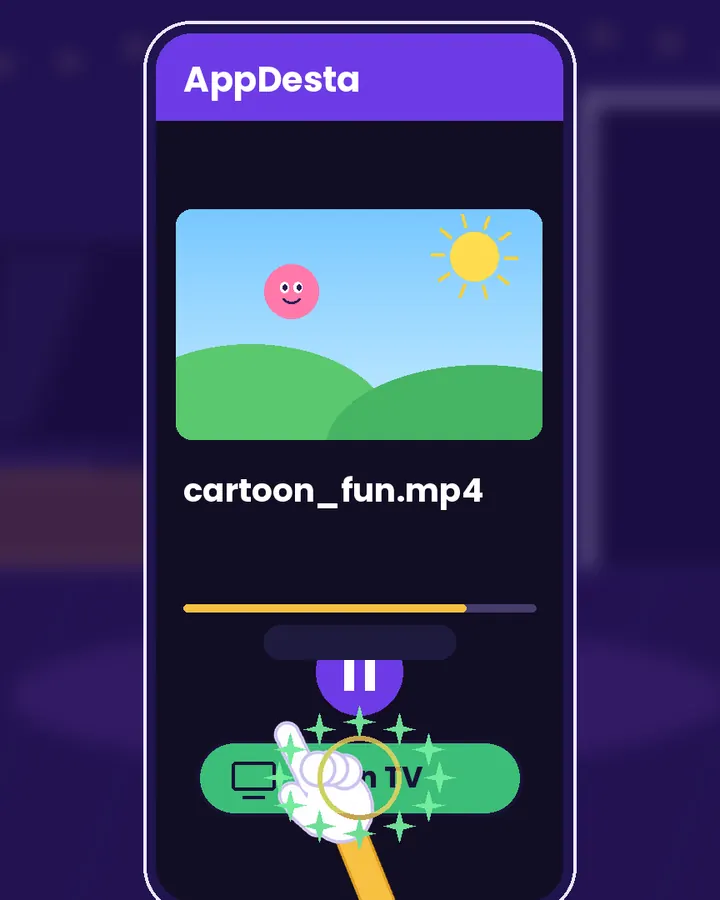 3
Watch together
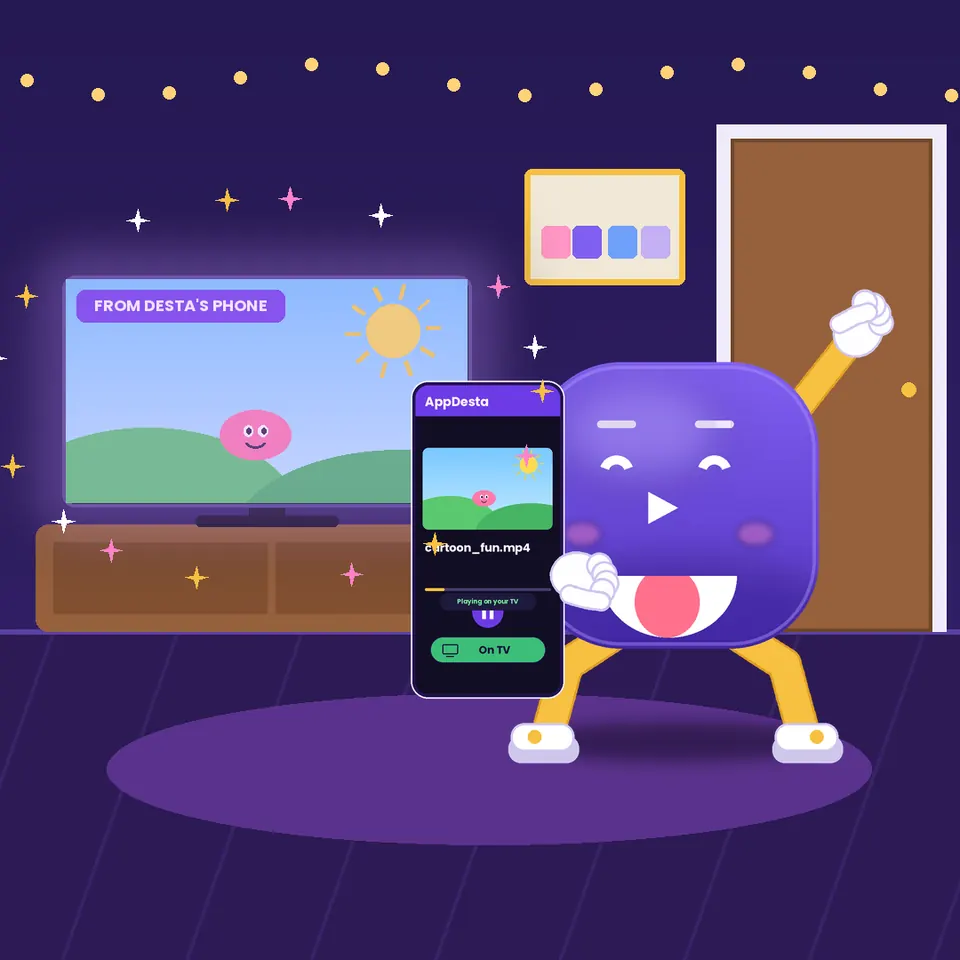
The video shows up in the Watch On TV list on your TV. Press play and everyone can watch.
Watch Desta show you
Short videos, light on data. They only load when you press play.
Turn on Watch On TV once
The first time, switch on Watch On TV on your phone. AppDesta explains how it works and lets you choose how many devices can connect. After that, your TV finds your phone by itself.
Nothing is copied to the TV
The video plays from your phone, so your TV’s storage stays free. Very large videos can buffer on a slow Wi-Fi. If that happens, download that one to the TV instead.
Control it from your phone
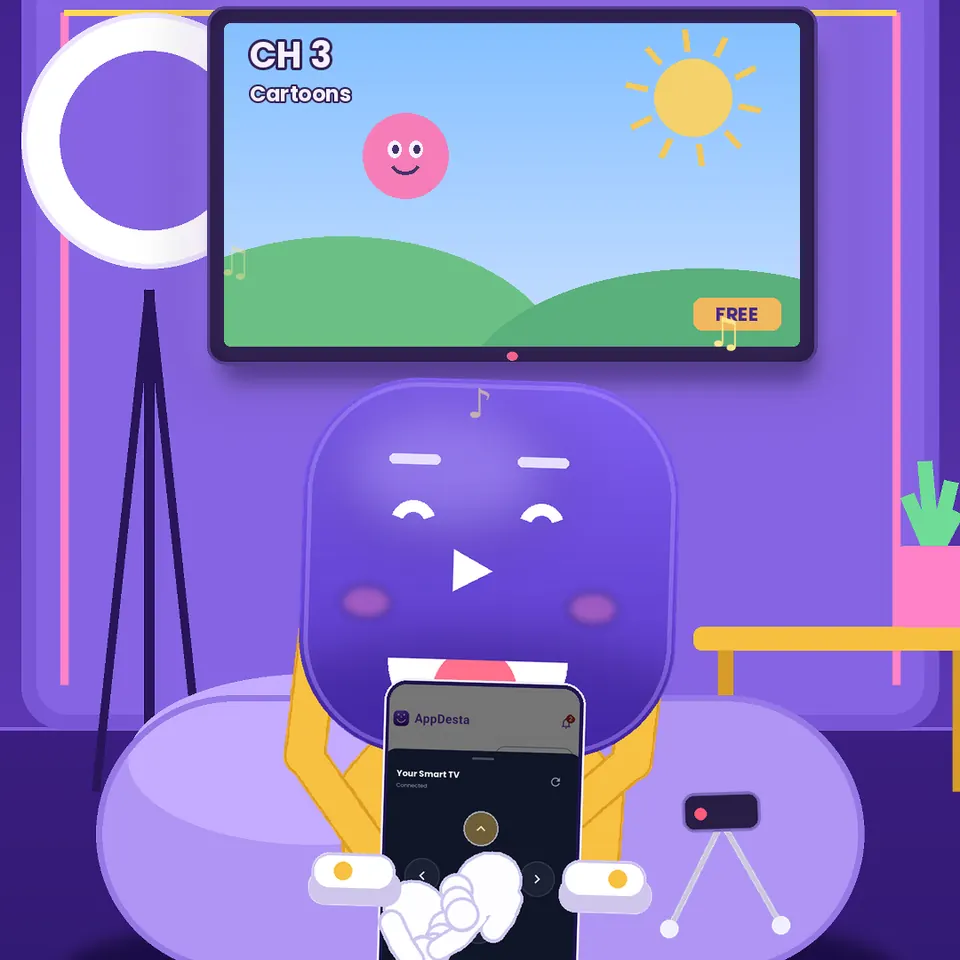
No remote nearby? Use your phone as the remote for the AppDesta TV app.
Questions
Does the TV need internet?
No. Your phone and TV just need the same Wi-Fi, or the TV can join your phone’s hotspot.
Which TVs work?
Android TV, Google TV and Amazon Fire TV with AppDesta installed. Samsung, LG or Hisense TV? Plug in a Fire TV Stick or an Android TV box.
Does it fill up my TV?
No. Videos play from your phone. Only videos you choose to download are saved on the TV.
Get AppDesta free
One app for your Android phone and Android TV.