Phone remote
Lost the TV remote? Use your phone
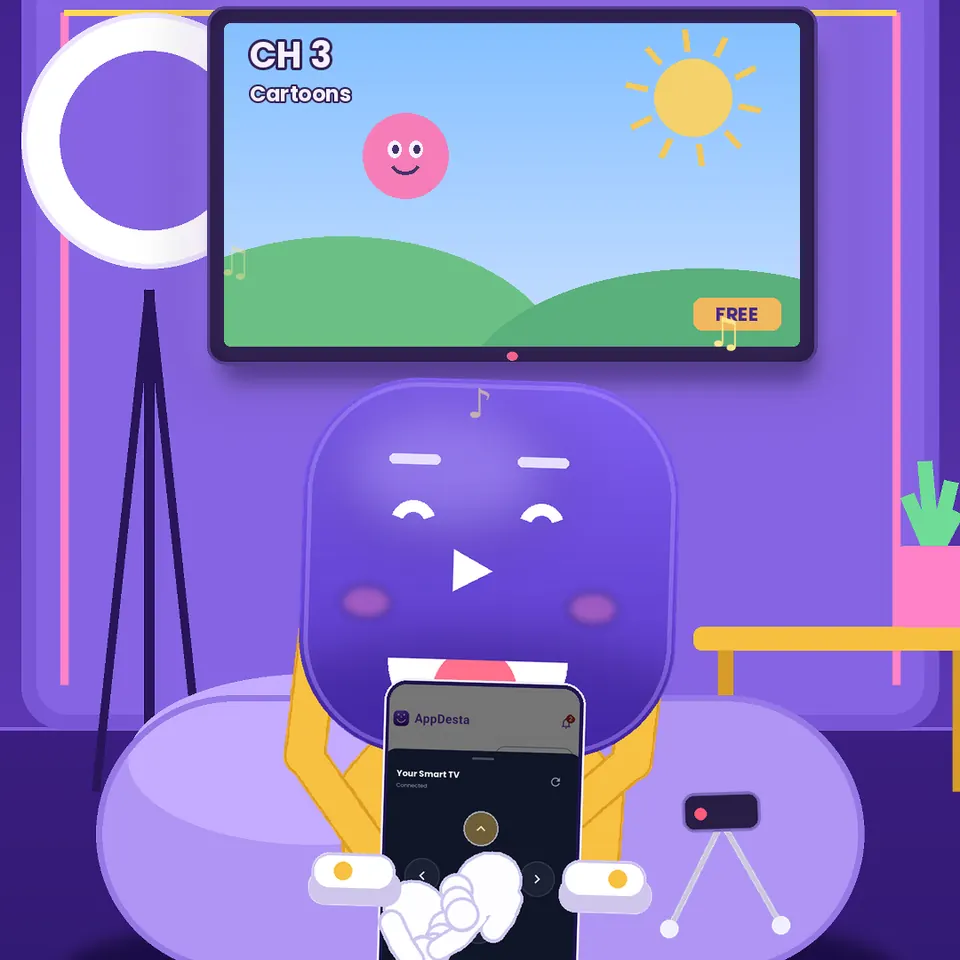
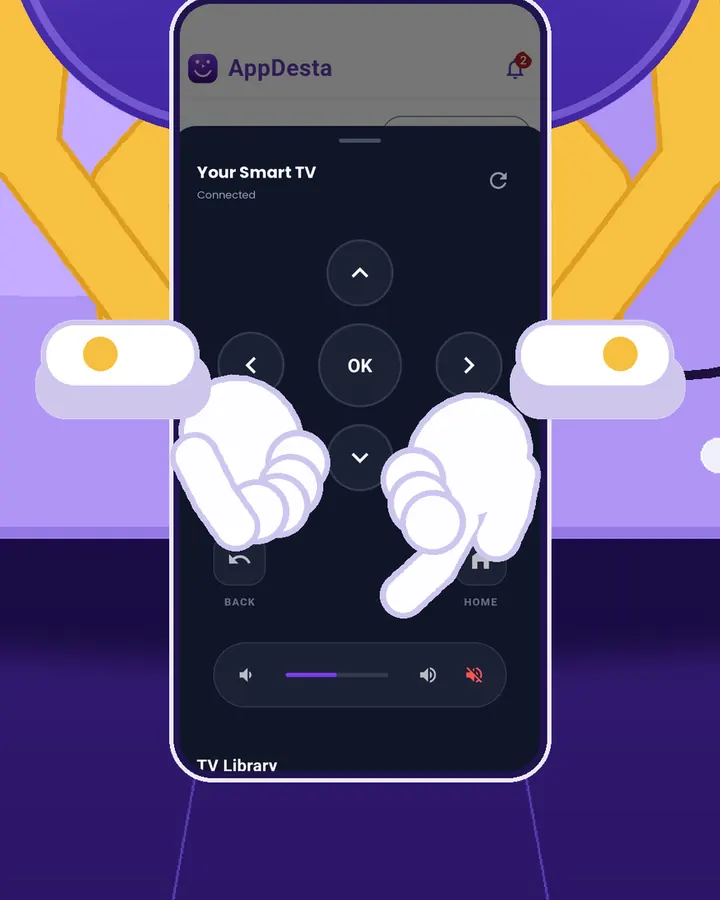
When your phone is connected to AppDesta on your TV, tap the Remote button. Your phone becomes a remote for the AppDesta TV app, with arrows, OK, Back, Home and volume.
How it works
 1
Tap Remote
Open AppDesta on your phone and your TV. When they’re connected, tap the Remote button on your phone.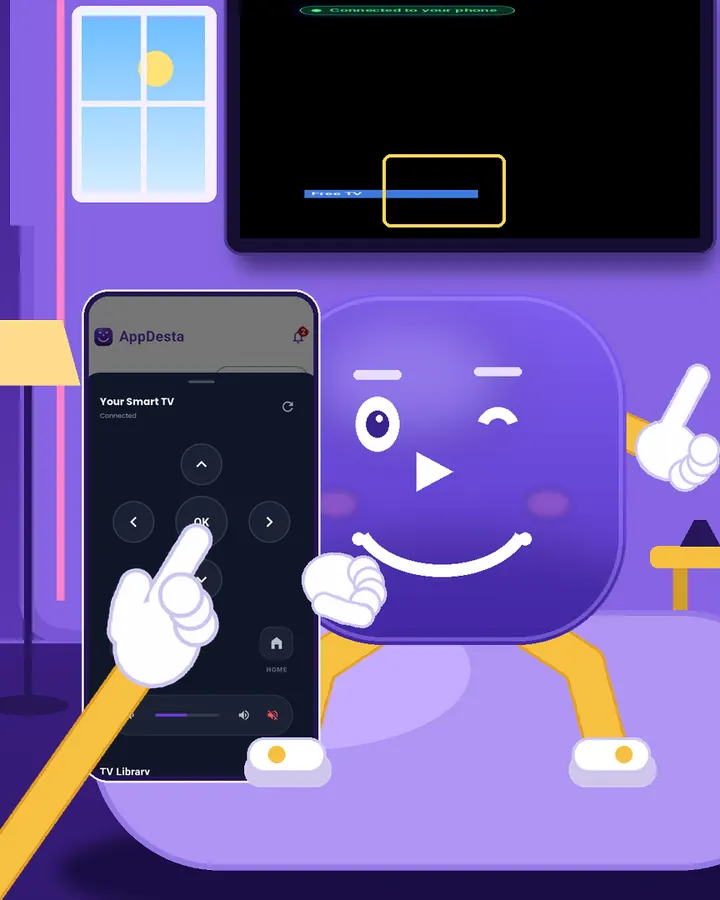 2
Browse and play
Use the arrows and OK to move around the TV library and start a video or stream.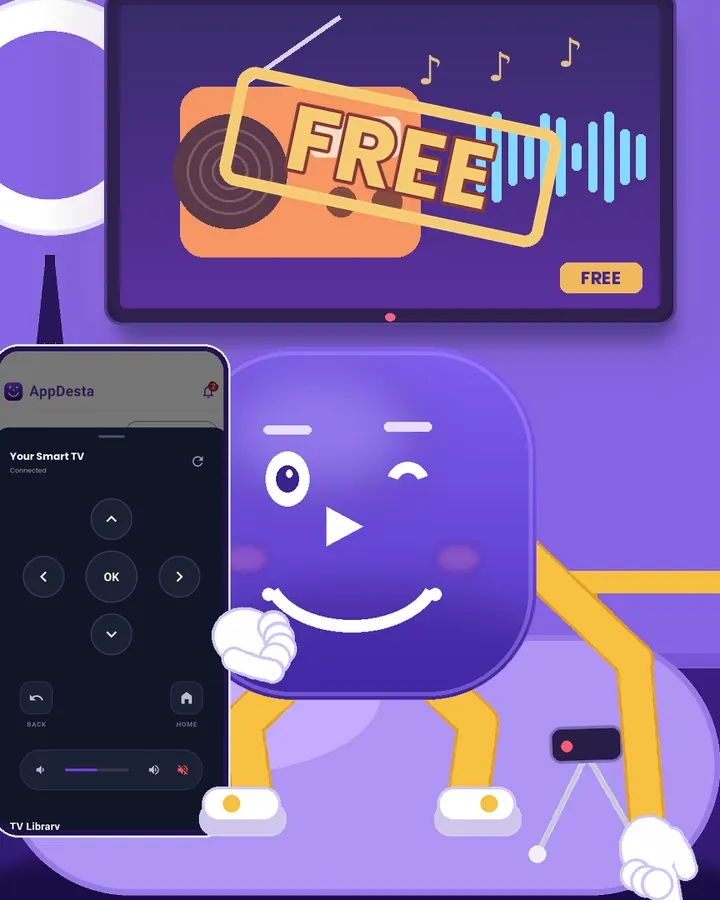 3
Change the volume
Turn the volume up or down, or mute, right from your phone.
Watch Desta show you
Short videos, light on data. They only load when you press play.
What it controls
The phone remote controls the AppDesta TV app. It doesn’t control your TV’s other apps or settings.
AppDesta needs to be open on the TV. If you closed it, open it on the TV once and your phone connects again.
No internet needed
Your phone and TV talk over the same Wi-Fi, or over your phone’s hotspot.
Questions
Can it control Netflix or my TV settings?
No. It controls the AppDesta TV app only.
Does it need internet?
No. The phone and TV only need to be on the same Wi-Fi or hotspot.
Which TVs work?
Android TV and Google TV with AppDesta installed.
Get AppDesta free
One app for your Android phone and Android TV.