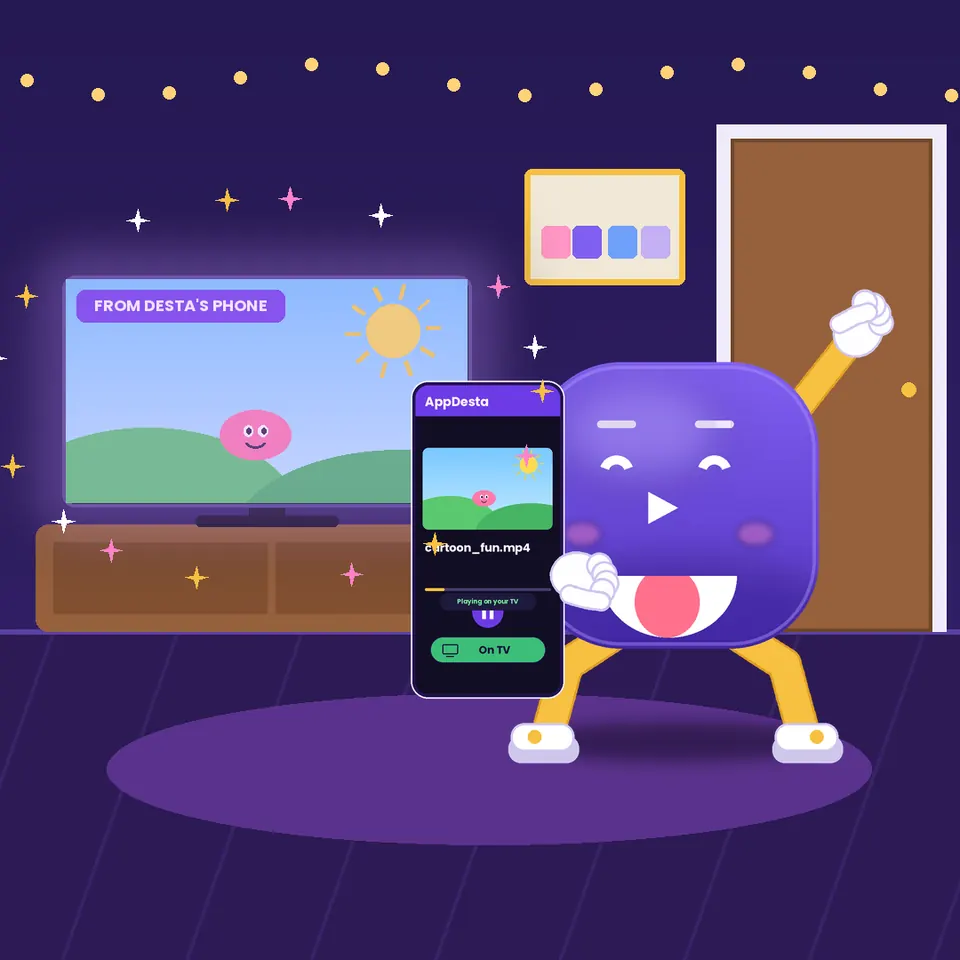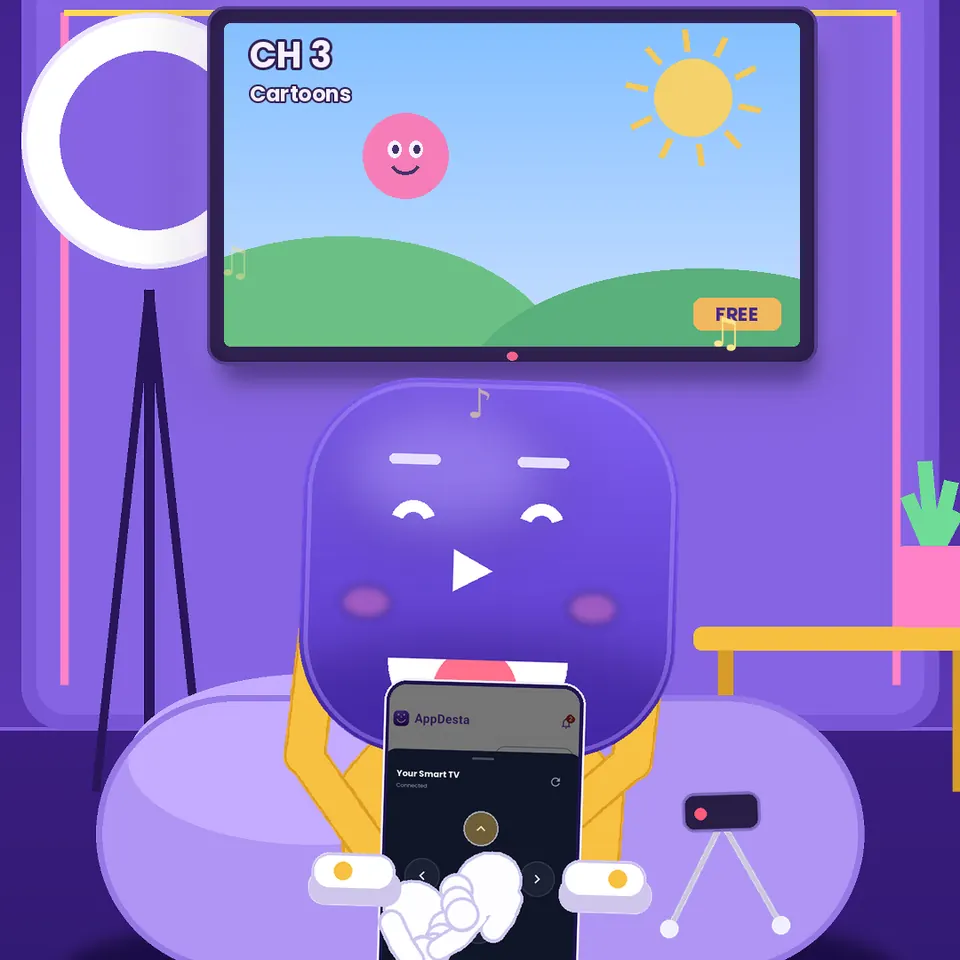
Send files and apps to your TV. No cable, no internet.
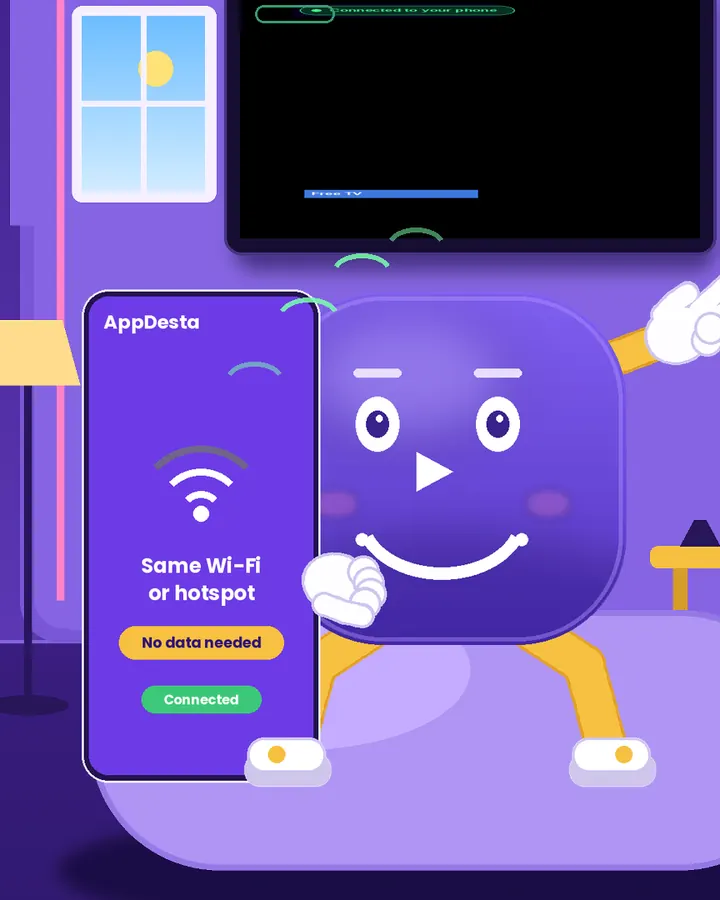
Smart Share sends files from your phone to your Android TV over your home Wi-Fi or your phone’s hotspot. Videos, photos, music, documents, and even app installers (APK files). Nothing goes over the internet, so it doesn’t use your data.
How it works
 1
Connect
Open AppDesta on your phone and your TV. Use the same Wi-Fi, or connect the TV to your phone’s hotspot.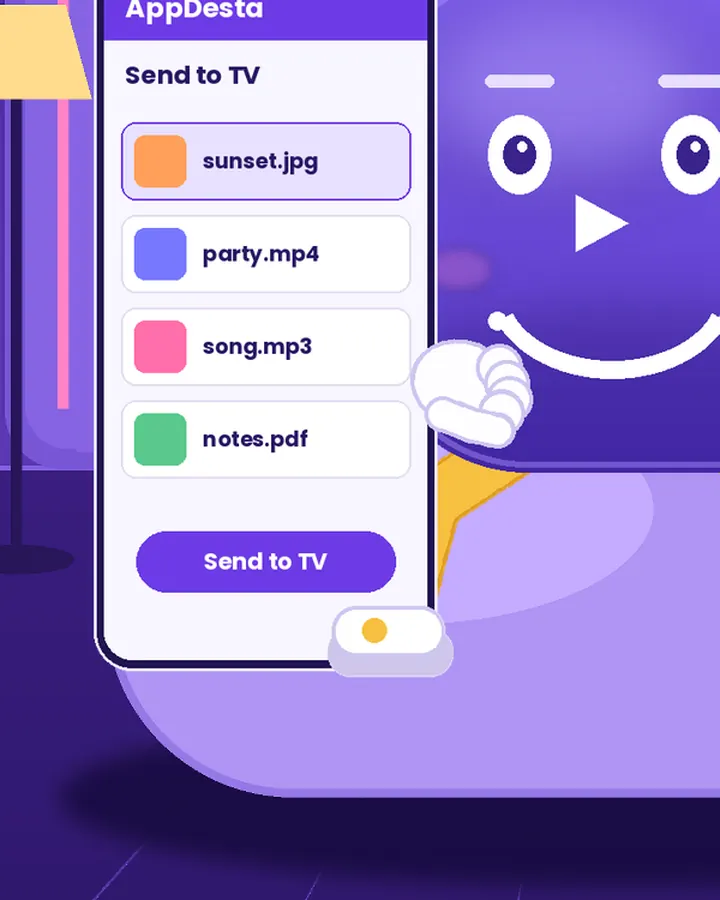 2
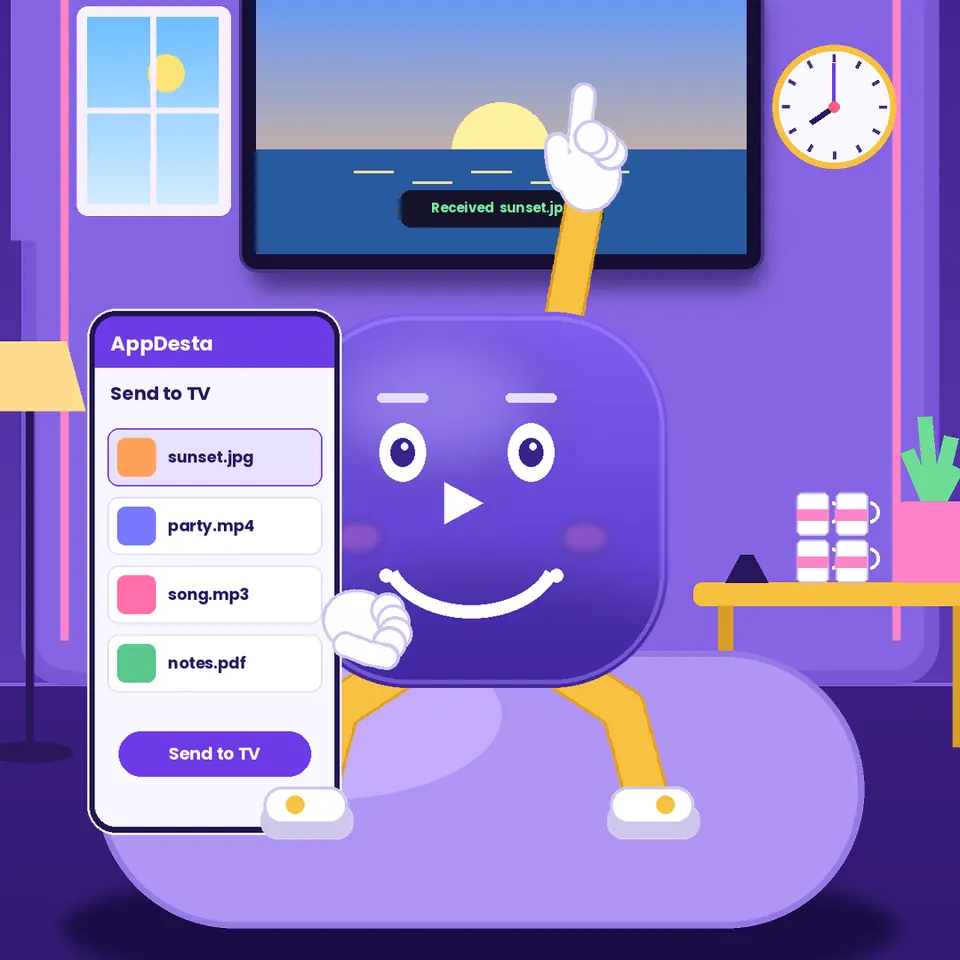
Tap Send Files to TV
In the Share tab, tap Send Files to TV and pick any file from your phone.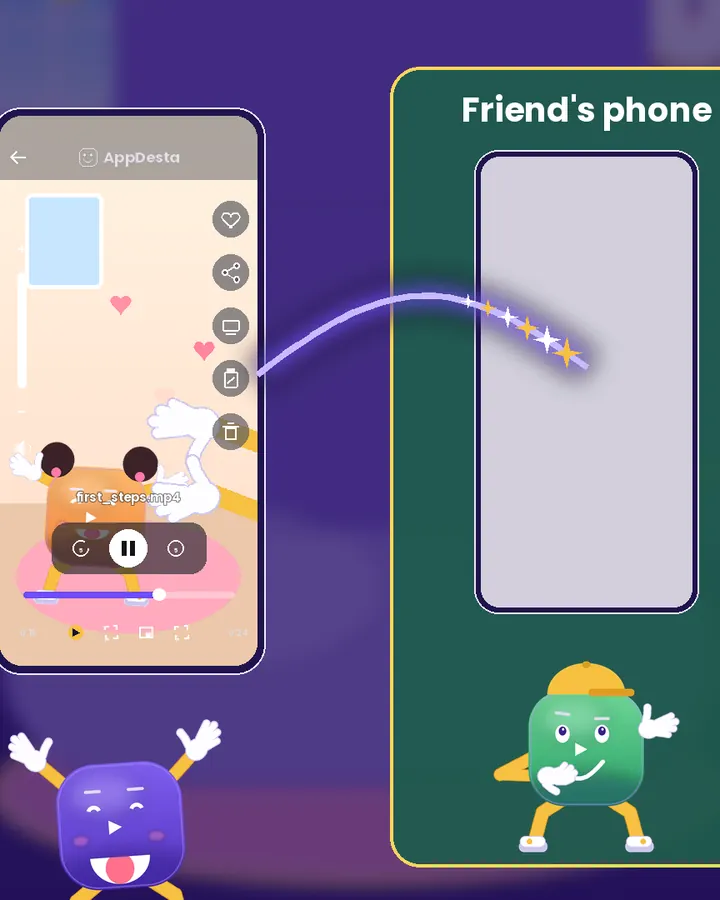 3
Or send to a phone
Swipe right on a video in your feed to send it to a friend’s phone nearby.
Watch Desta show you
Short videos, light on data. They only load when you press play.
Install apps on your TV from your phone
Installing apps on a TV with a remote is slow. Send the APK file from your phone instead, and it shows up on the TV with an Install button. Android asks you to allow the install the first time.
No internet? No problem.
Files go straight from your phone to the TV over the local connection. If there’s no Wi-Fi router, turn on your phone’s hotspot and connect the TV to it. Tip: switch off mobile data while you share so nothing else uses it.
Laptops and tablets can join in a browser
When sharing is on, AppDesta shows a link and a QR code. Laptops, tablets and phones on the same network can open it in a browser to see your shared media, even without the app.
Tell your friends
Tap Invite Friends to send a friend a message about AppDesta on WhatsApp, Telegram or any other app. Want to watch your phone’s videos on the TV without sending files? See Watch phone videos on TV.
Questions
Does it use mobile data?
What can I send?
Which TVs work?
Get AppDesta free
One app for your Android phone and Android TV.